
Craftomation 101 Controls Cheatsheet
Mouse-first Craftomation 101 inputs: move, combine, and program CraftoMates with drag-and-drop.
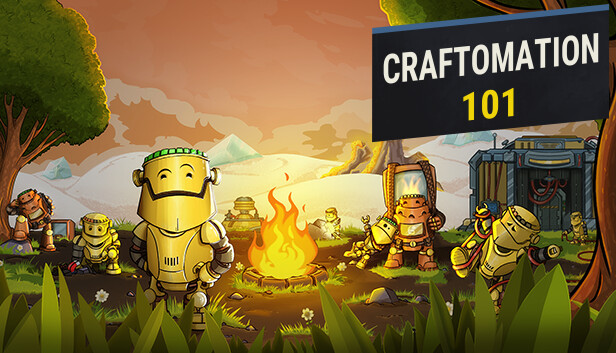
Craftomation 101: Programming & Craft is built around mouse drag-and-drop. You haul CraftoMates and resources by dragging, craft by dropping items onto each other, and write automation by dragging visual blocks into programs. This cheatsheet keeps those habits obvious so you can focus on recipes and loops instead of fighting the UI. Pair it with Getting Started, visual programming, and the recipe list.
Core idea
If an action involves “put this with that,” try dragging. The game teaches combination spatially: Spark is Stone dropped with Stone; Fire is Spark with Coal; a program step is a block dropped into a graph. Keyboard shortcuts may exist depending on platform build, but mastery starts with the mouse.
Movement and world interaction
- Move a unit or stack: click-drag to the destination and release.
- Reposition work: drag mates next to the chests or resource piles they should service.
- Camera: use standard pan/zoom habits for your platform so you can see both inputs and outputs of a loop.
- Keep lanes clear: cluttered ground makes drag targets hard to hit—use Storage (Steel Plate + Glass) once unlocked.
When a mate stands in the wrong place, do not rewrite its entire brain first—drag the body, then fix waypoints in its program if needed.
Combining and crafting
- Combine two items: drag one stack onto the other when a recipe exists.
- Watch the result: successful combines spawn the output; failed drops usually mean wrong pairing or missing station context (for example Brewery ales).
- Batch thoughtfully: early on, craft one Fire at a time until you understand Coal spend; later, let automated loops batch for you (Automate Fire).
- Use the color rows: Base → Yellow → Blue → Gray → Green. The recipes page lists every documented pairing.
Common early combines to muscle-memory:
| Output | Drag together |
|---|---|
| Spark | Stone + Stone |
| Fire | Spark + Coal |
| Water | Ice + Fire |
| Steel | Iron + Fire |
| Seed | Water + Wood |
Programming CraftoMates
Visual programming is another drag surface:
- Add a block: drag from the palette into the mate’s program space.
- Reorder logic: drag blocks along the execution path.
- Connect data/flow: use the game’s link affordances (ports/edges) by dragging between nodes when required.
- Assign jobs: point move/combine/wait style blocks at the chests you already laid out.
Read visual programming for pattern advice. From a controls perspective, remember: broken graphs often come from bad targets, not bad intentions. If a mate cannot find Coal, drag the Coal closer or retarget the block.
Feeding and maintenance actions
Hungry or stalled robots need intervention:
- Drag feed items to the mate or into the feed routine’s chest.
- Temporarily drag a mate back to a safe bay while you repair its program.
- After feeding works manually once, encode it—see Feed robots.
Controls skill and automation priority meet here: the same drag that saves a mate once should become a loop ranked on automation priority.
Inventory and storage hygiene
- Drag overflow into Storage as soon as Steel Plate and Glass allow.
- Separate input vs output chests so drag targets stay obvious.
- Color-code areas mentally: yellow zone for Fire inputs, blue zone for plates, green zone for robotics parts.
Clean storage reduces mis-drops—the most common “controls bug” that is actually a layout bug.
Platform notes (Win / Mac / Linux / Deck)
The game ships on Steam for Windows, macOS, and Linux with light system requirements. On desktop, a basic mouse is ideal. On Steam Deck (Playable):
- Prefer trackpad or mouse mode for precise drag-and-drop.
- Expect to slow camera moves while aligning combines.
- Large fingertips plus tiny stacks = more misclicks; zoom in before combining.
If Deck controls feel awkward, a Bluetooth mouse turns the cheatsheet back into the desktop experience the UI expects.
Accessibility and comfort tips
- Increase zoom when teaching yourself new recipes.
- Take breaks; precision dragging fatigues wrists more than click-combat games.
- Use deliberate drop targets—hover a beat before release when stacks overlap.
- Keep the early recipes list open so you drag the right pair on the first try.
Troubleshooting “it won’t combine”
- Confirm both items match a real recipe on the recipe list.
- Confirm you are not dropping onto a busy mate mid-animation.
- Confirm Brewery-only crafts happen in the Brewery context (Primordial Ale = Wood + Water there).
- Confirm Fire still exists when a recipe spends Fire.
- Confirm the stack sizes are what you think—drag a split pile if the UI allows partial moves in your build.
Practice drill (five minutes)
- Drag two Stones together → Spark.
- Drag Spark onto Coal → Fire.
- Drag Ice onto Fire → Water.
- Drag a mate beside the Fire chest; open its program; drag a simple haul block.
- Drag Water and Wood → Seed when ready.
Finish the drill, then continue Getting Started. When Fire clicking feels tedious, you have outgrown pure manual controls—automate.
Related links
Frequently Asked Questions
Quick answers to the most common questions.
Is Craftomation 101 mainly keyboard-controlled?
No. Most movement, combining, and programming uses mouse drag-and-drop. Learn the mouse vocabulary first.
How do I craft items?
Drag compatible resources onto each other (for example Stone + Stone for Spark). Check the recipe list if a pair fails.
How do I program robots?
Open a CraftoMate program and drag visual blocks into place, targeting the chests and resources they should use.
Does Steam Deck work with these controls?
Steam Deck is Playable. Use trackpads or a mouse for precise dragging; zoom in before combining small stacks.
What should I do after learning controls?
Follow Getting Started, keep the recipe list open, then automate Fire and robot feeding so dragging becomes supervision instead of labor.